How To Manage Amazon Shipping Status
Management Sheet:
Amazon Tour Operation Management sheet
Rule in Amazon Tour Operation Management sheet
- Column in Blue : No need to change, updated automatically
- Column in Yellow : Need to change manually
Operation Trigger
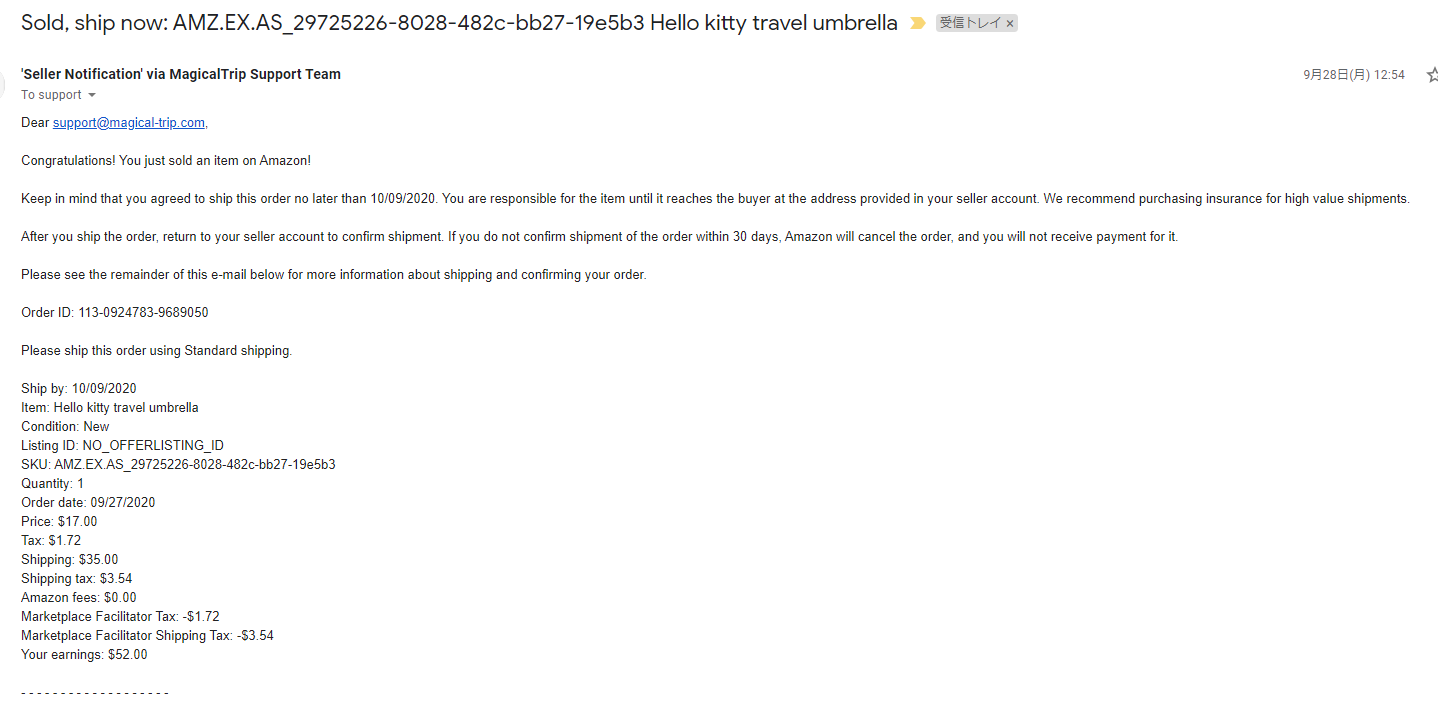
When the shopping is made during the tour and the following email saying Sold, ship now is received, this operion should run.
Operation Flow
1. Export the Booking data from Metabase
- Data Source: https://monitoring.magical-trip.com/question/260
- Date Range : Select the data range that you want to export the data
2. Import the booking data to Amazon Tour Operation Management sheet
- Where to import the data: Import the booking data from metabase to
MT_rawsheet in Amazon Tour Operation Management sheet - After importing the data, the data from column A
to G in
Amazon Tour Operation_Shopping有無確認sheet will be automatically updated
3. Find out the shopping is made from which tour group and change shopping status in Management sheet
- 3-1: Visit Amazon seller central
- 3-2: Click
Ship your Orders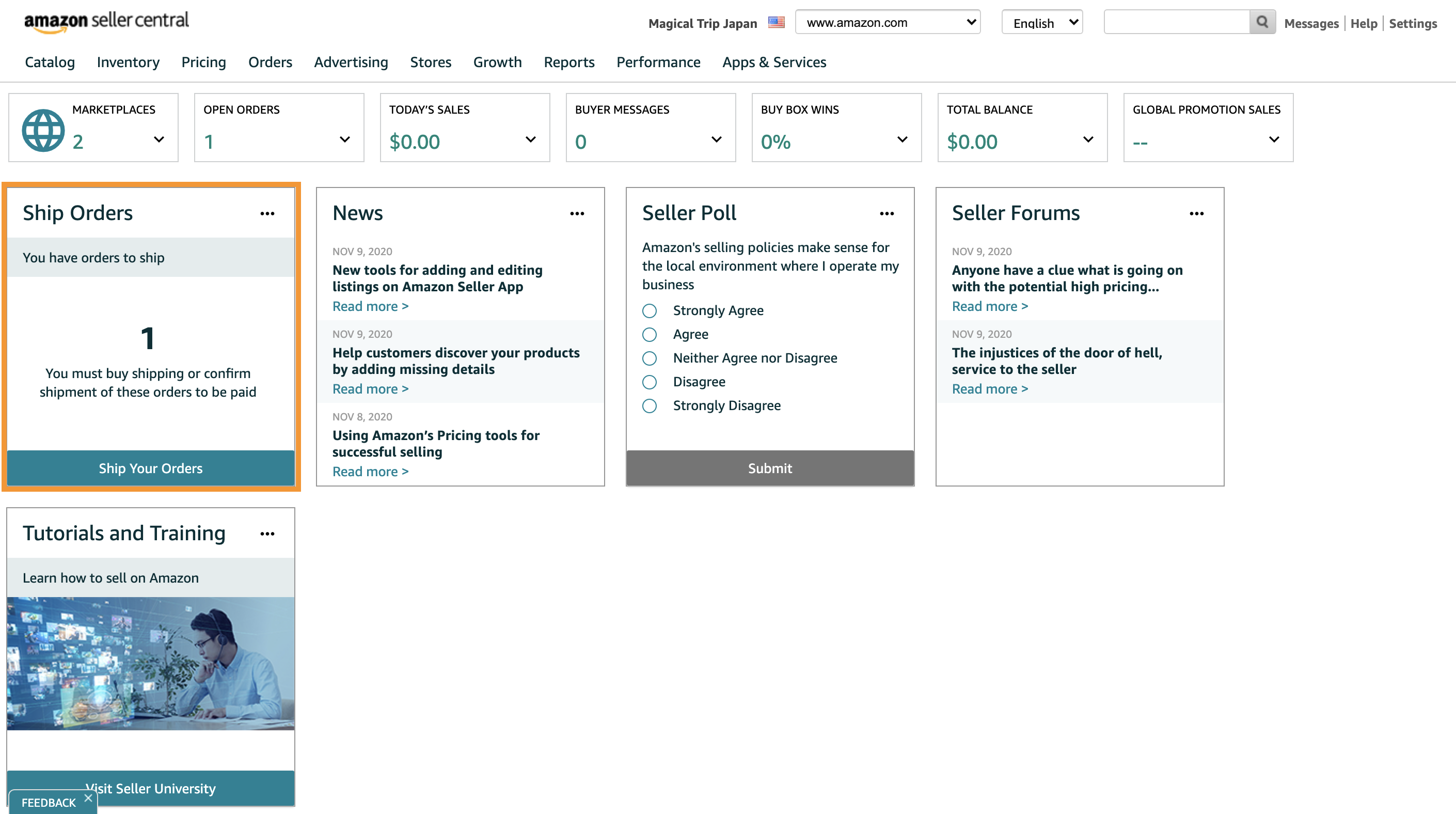
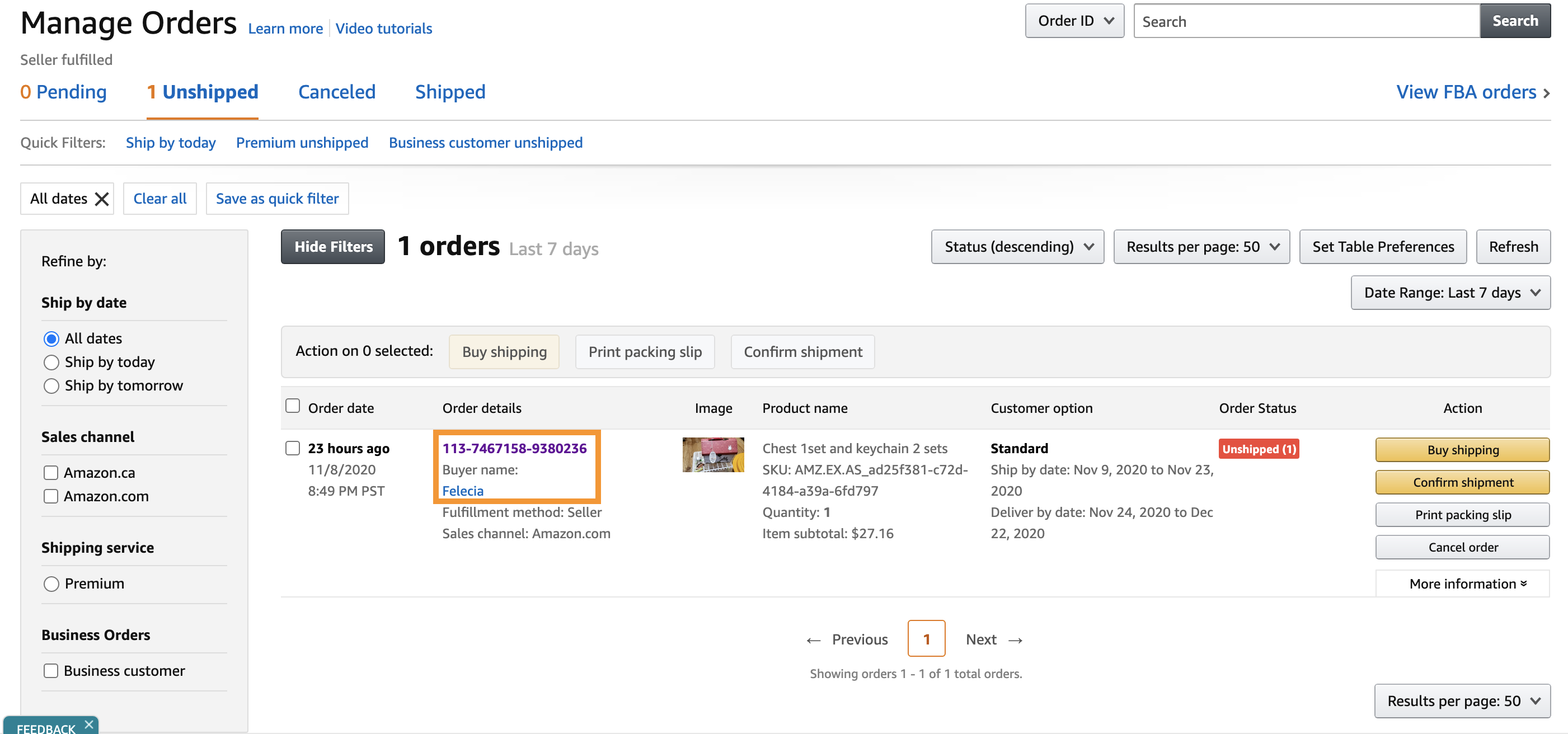
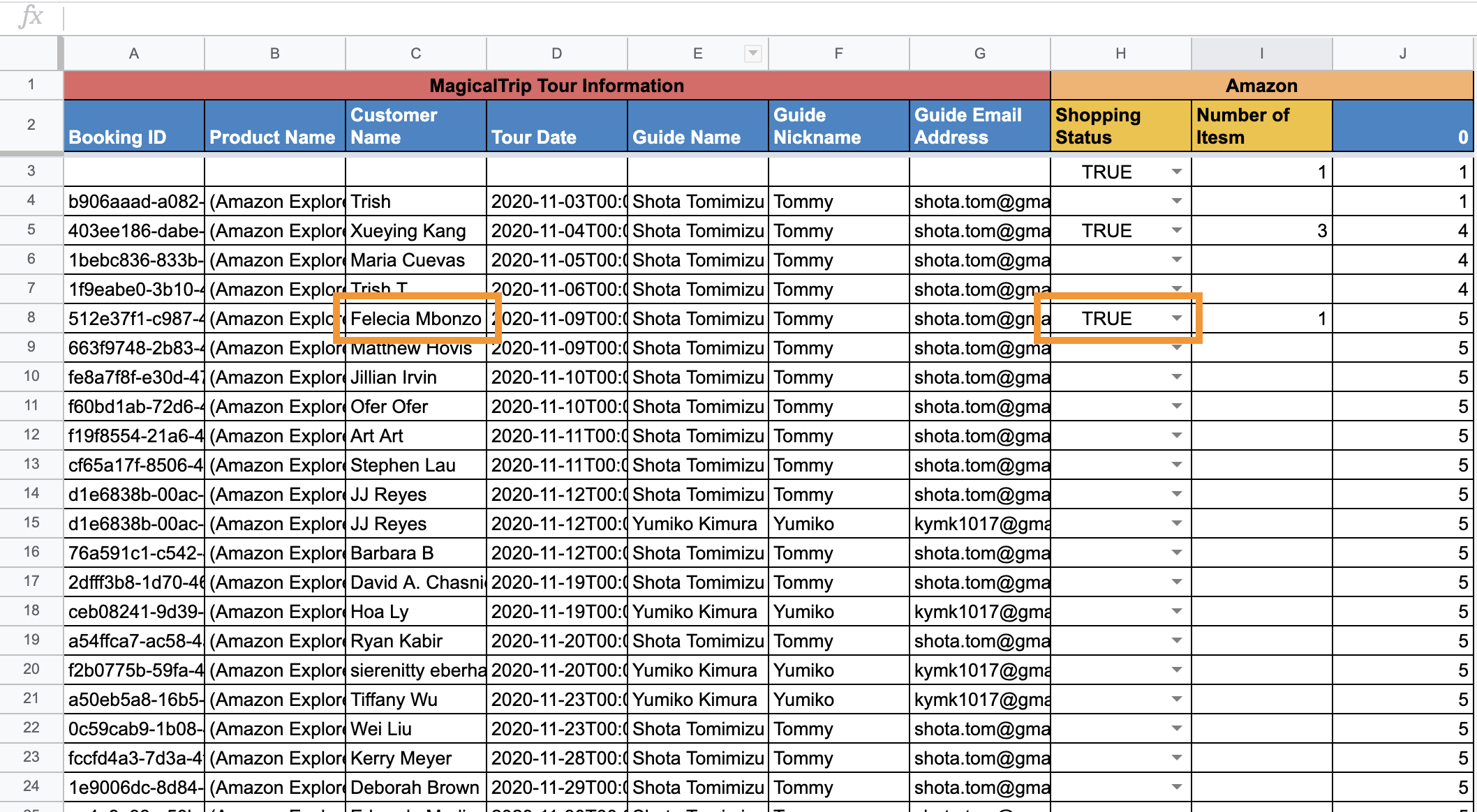
- 3-3: Based on the customer name in
Manage Orders, find the corresponding booking Amazon Tour Operation_Shopping有無確認, and changeShopping Statusin column H toTRUE - 3-4: Put the number of purchases made in column I (Number of Items) (※One customer could buy multiple products)
4. Put Order ID to Amazon Tour Operation Management sheet
- 4-1: Copy Order ID from
Manage Orders
4-2: Paste the Order ID to the column H (Order ID) in Amazon Tour_Item Shipping
(※If one customer purchased 3 products, 3 different Order ID is generated. So, in this case, copy 3 order IDs and paste 3 Order IDs.)

5. Issue Invoice from Amazon seller central
You can issue from here
5-1: Download an invoice by clicking the
print package slipbutton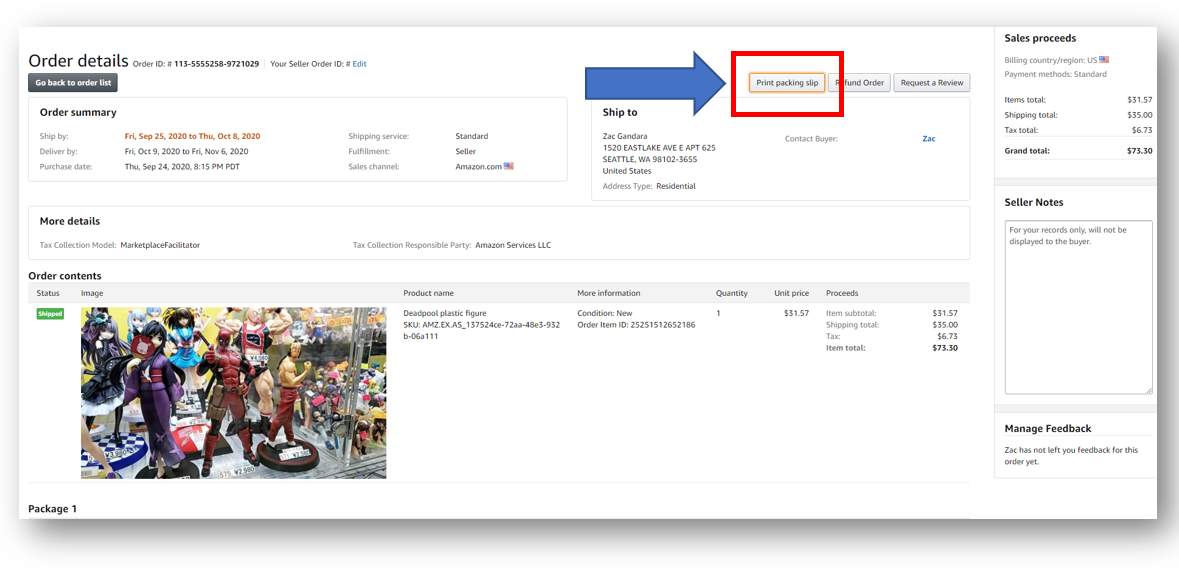
5-2: follow this flow
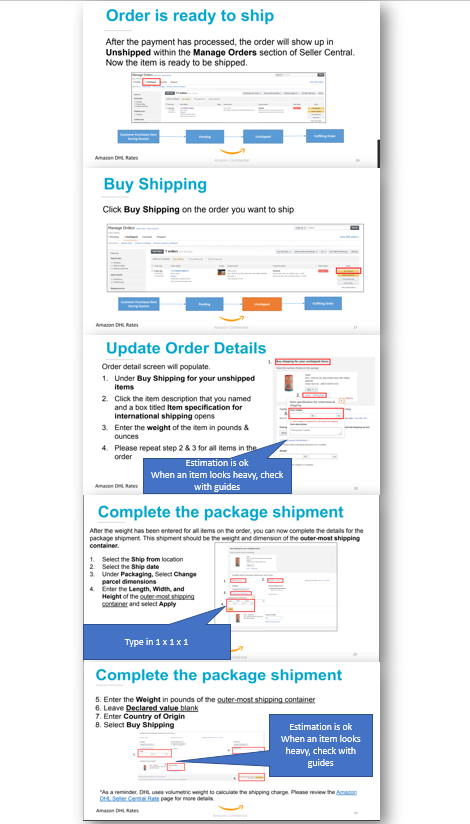
5-3: When the step 1&2 are complete, a lable like blow pops up automatically and download it.
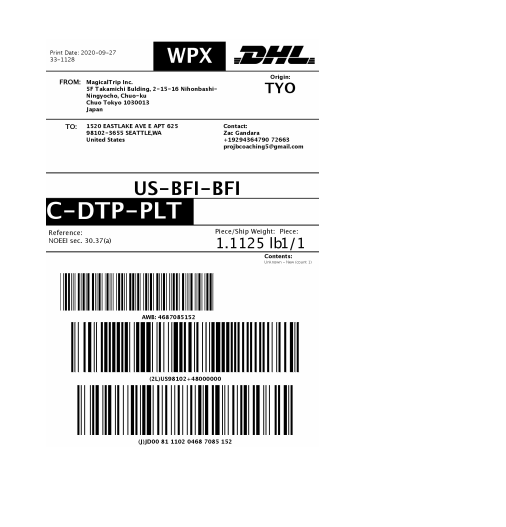
6. Put the invoice to Google Drive
- 6-1: Create a new folder in Google Drive
The folder name is the booking ID, that is shown in column A (BookingID) in Amazon Tour_Item Shipping
- 6-2: Put the Downloaded Invoice PDF file to the created folder
- 6-3: Copy the
Folder URLand paste in Column I (Invoice / 送り状URL) in Amazon Tour_Item Shipping
7. Send a guide email about DHL pick up
- 7-1: Confirm column H (OrderID) and I (Invoice / 送り状URL) is filled in Amazon Tour_Item Shipping
- 7-2: Click
Send Guide an Emailin Send_Emails Sheet.
After clicking Send Guide an Email, the email will automatically be sent to the guide. The error message might pop up, but ignore it.
- 7-3: Click
Backupin Send_Emails Sheet
8. Check guide's response for DHL picl up time
8-1: Guide will reply us the message about DHL pick up time
8-2: Reserve the DHL pick up
- Go to DHL Website
- Fllow the instructions below
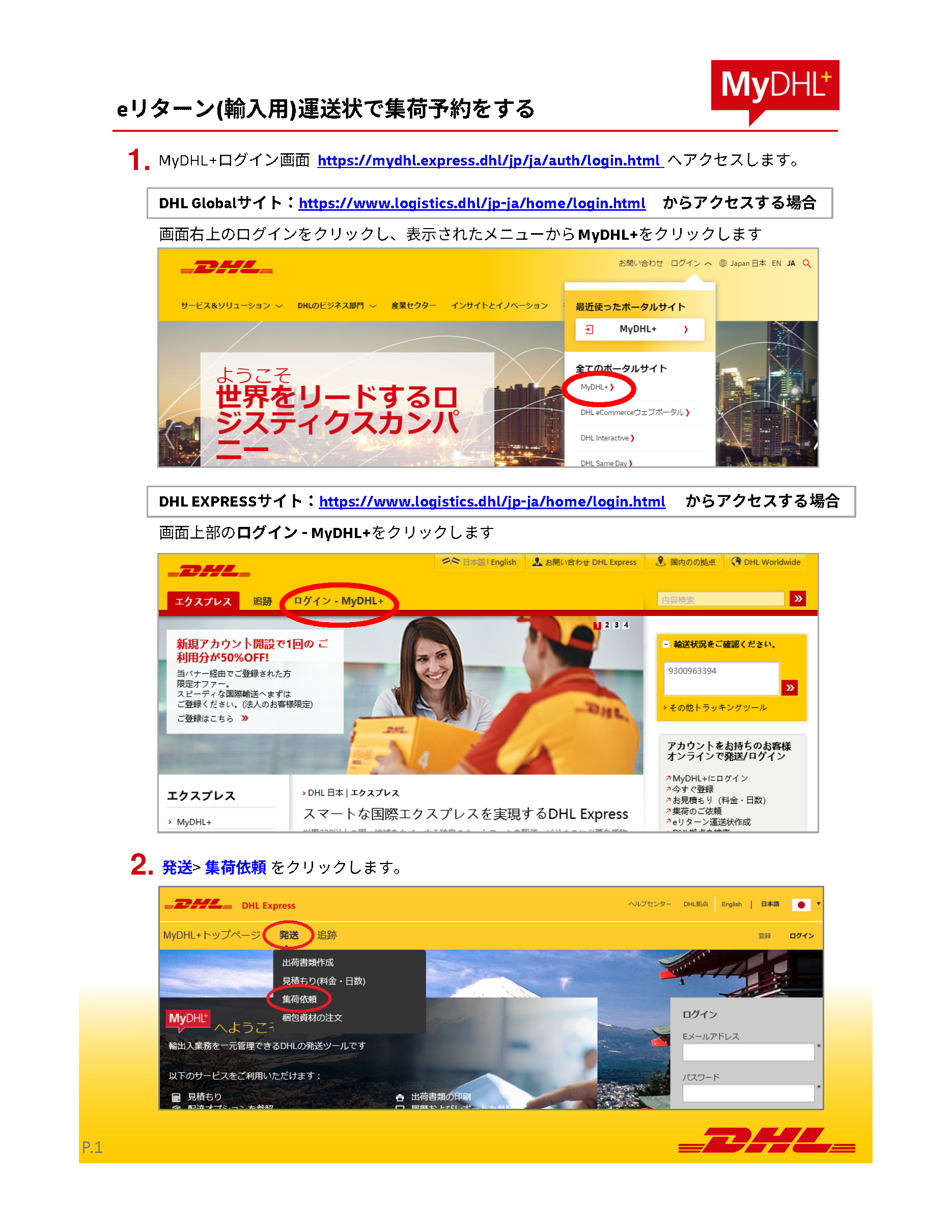
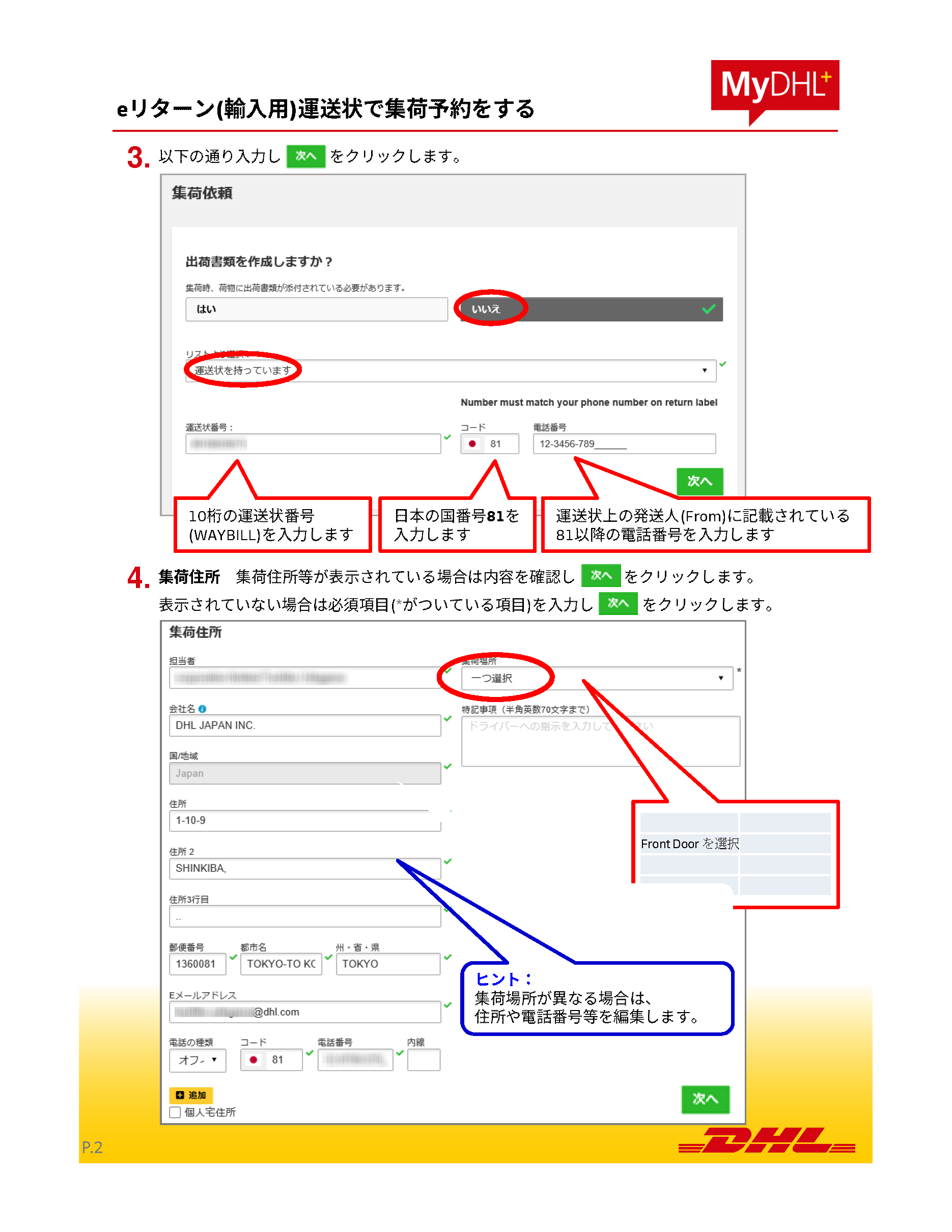
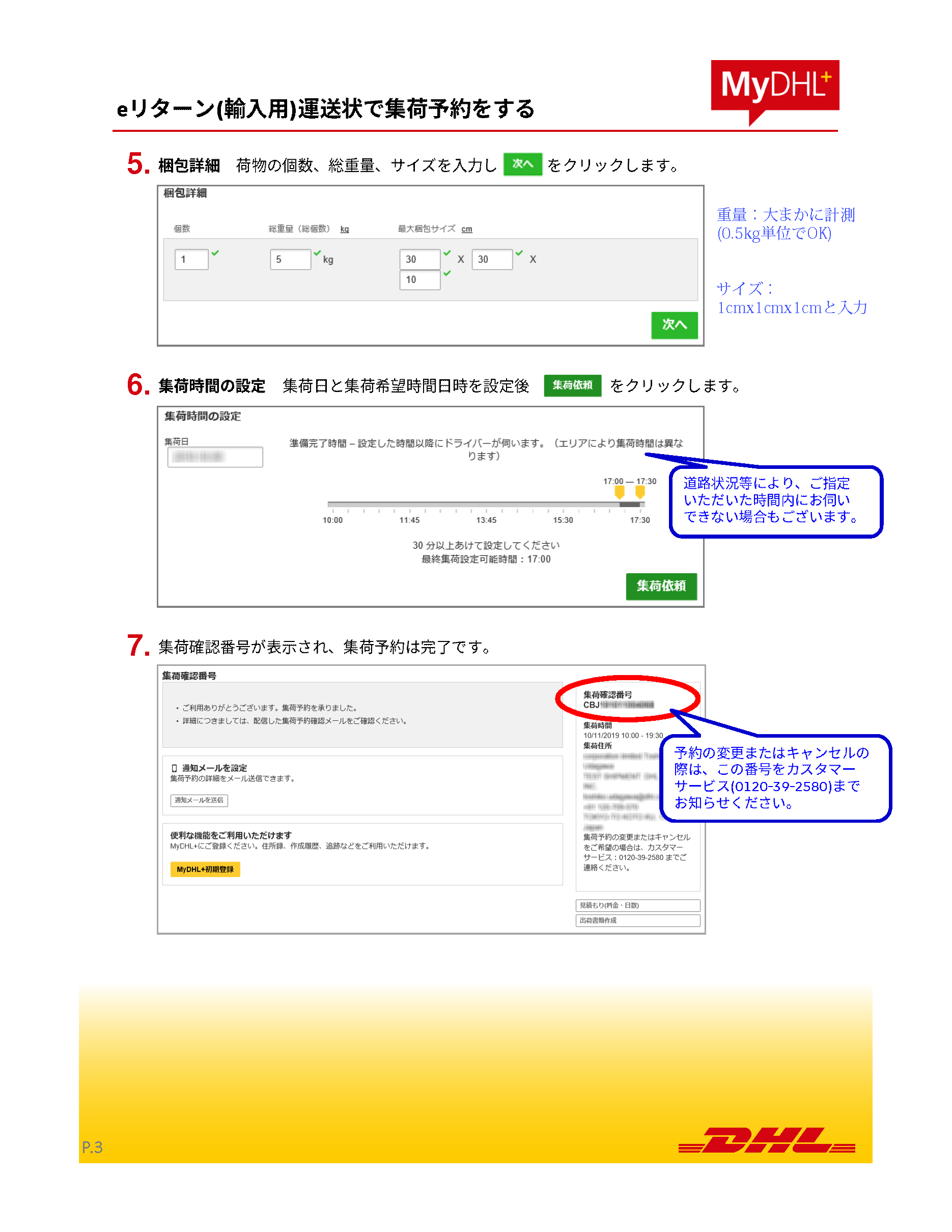
- 8-3: Put the DHL invoice (送り状) to the created google drive folder in
6-1above - 8-4: Change the
Reserve DHL Pick Upin column M in Amazon Tour_Item Shipping toDone - 8-5: Put
DHL Confirmation Numberin column N

9. Confirm if shipping is done
- 9-1: Check if the Pick up complete email was received
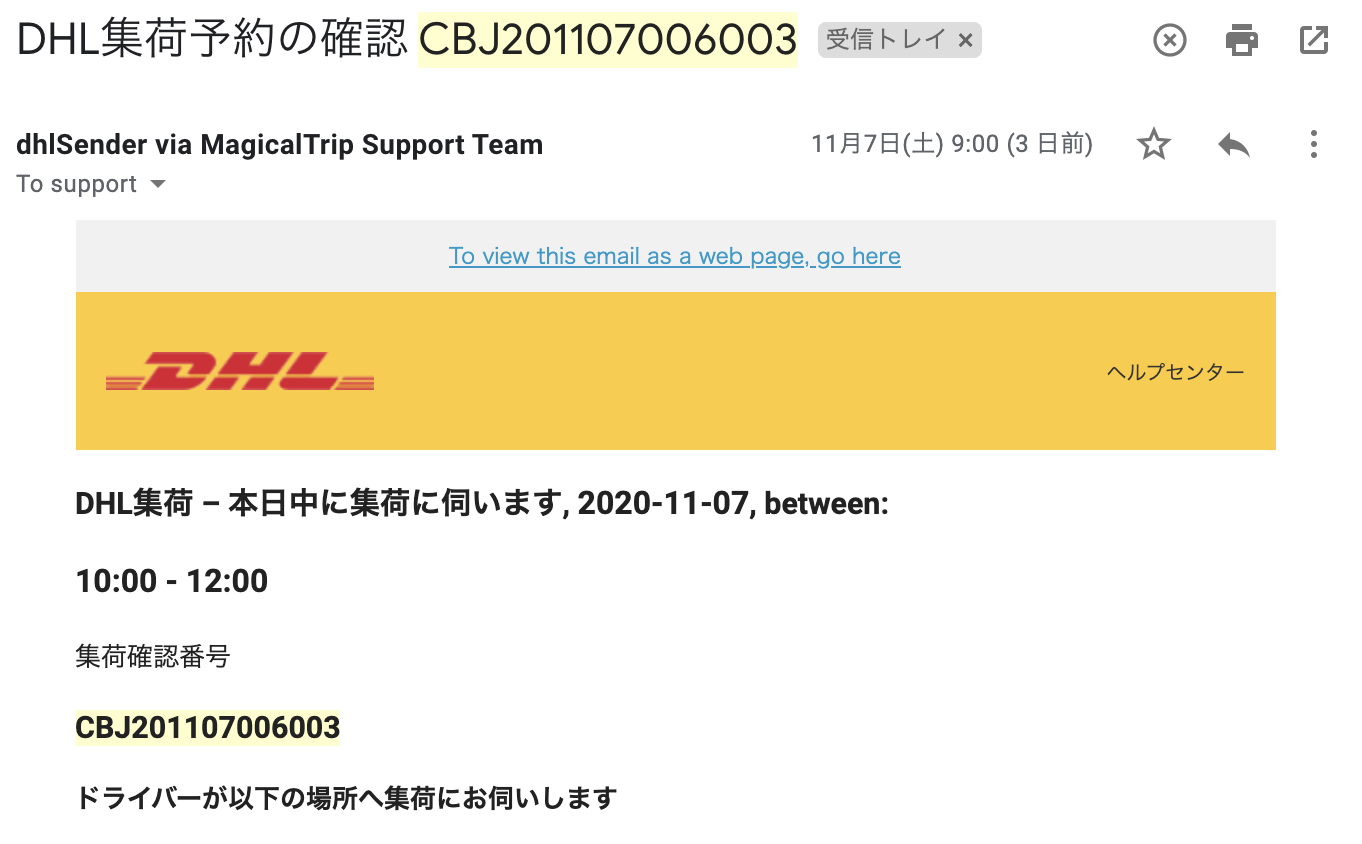
- 9-2: Change column O
Item Picked Upto "Done" in Amazon Tour_Item Shipping